
Contact Us : +91 90331 80795

Blog Details

Breadcrub
How to Recover or Request a New keyAlias and keyPassword in Google Play

How to Recover or Request a New keyAlias and keyPassword in Google Play

When you build and publish Android apps, security is extremely important. Every app on the Google Play Store must be signed with a secure key before it can be uploaded or updated. This signing process helps Google ensure that only the verified developer (you or your team) can push updates for the app.
 
The signing key is stored inside a keystore file and is protected by two important elements:
 
  • keyAlias → The “nickname” or identifier of your key inside the keystore. If you have multiple keys in the same keystore, each one has its own alias.

  • keyPassword → The password used to secure and protect the private key. Without it, you cannot use the key to sign your app.

But sometimes, developers face problems: they forget these credentials, lose the keystore file, or their signing key becomes compromised. In such cases, you cannot release updates to your app unless you fix the issue.
 
So, what can you do? Google provides a way to request a new keyAlias and keyPassword. Let’s go step by step.


Why You Might Need a New Key

 
There are several real-world scenarios where you may need to request new signing details:
 

1. Lost Credentials

 
  • You misplaced the keystore file.

  • You forgot the alias or the password.

  • The team member who handled it left the company without sharing details.


2. Compromised Keys

 
  • If your keystore is exposed or hacked, anyone could potentially sign and publish a fake version of your app. In this case, security requires creating a new key immediately.
 

3. Project Migration

 
  • If you are moving your project to a new setup (for example, moving from one development team to another or switching build pipelines), generating a new key might make sense.
 

4. Better Management in Teams

 
  • For teams, keeping one person as the sole owner of the keystore is risky. Having Google manage it via Play App Signing, along with a reset request, gives better long-term security and easier collaboration.
 
In short, requesting a new key is not something you will do often, but when the need arises, knowing the process saves time and avoids stress.


Steps to Request a New keyAlias and keyPassword from Google

 
Here’s the full process explained in detail:
 

Step 1: Use Google Play App Signing

 
Google introduced Play App Signing to help developers manage keys safely. Instead of you keeping the signing key locally, Google securely stores the app signing key. This is the key that actually signs the APKs or App Bundles when they are released.
 
If you are using Play App Signing (highly recommended):
 
1. Go to the Google Play Console.
 
2. Select your app.
 
3. From the left-hand menu, navigate to Setup → App integrity.
 
4. Under App signing key, you will see an option: Request new upload key.
 
What this means: Google won’t change the actual signing key (that remains constant for users to get updates). Instead, they allow you to upload a new upload key that you will use for future releases. Google then re-signs your uploads with the original key they hold.
 
This way, you can reset your upload credentials without losing the ability to update your app.


Step 2: Generate a New Key Locally

 
Once you request a reset, you need to generate a new key on your computer. This is done using the keytool command (which comes with the Java Development Kit, JDK).
 

Here’s the command:

$ keytool -genkey -v -keystore upload-keystore.jks -keyalg RSA -keysize 2048 -validity 10000 -alias new-key-alias

Breaking this down:

 
  • -genkey → Command to generate a new key.

  • -v → Verbose output (gives more information).

  • -keystore upload-keystore.jks → The file that will store your key. If it doesn’t exist, this command creates it.
  • -keyalg RSA → Algorithm used (RSA is widely accepted).
  • -keysize 2048 → The size of the key (2048 is secure enough for most apps).

  • -validity 10000 → Number of days the key will be valid (about 27 years).

  • -alias new-key-alias → The identifier of your key. Replace this with your preferred alias.

During this process, you will be asked to:
 
  • Create a password for the keystore.

  • Enter details like name, organization, location, etc.

  • Create the keyPassword for your alias.
Important: Write down the alias and passwords somewhere secure (password manager or encrypted file). Losing them again will put you in the same situation.


Step 3: Submit a Request to Google Support
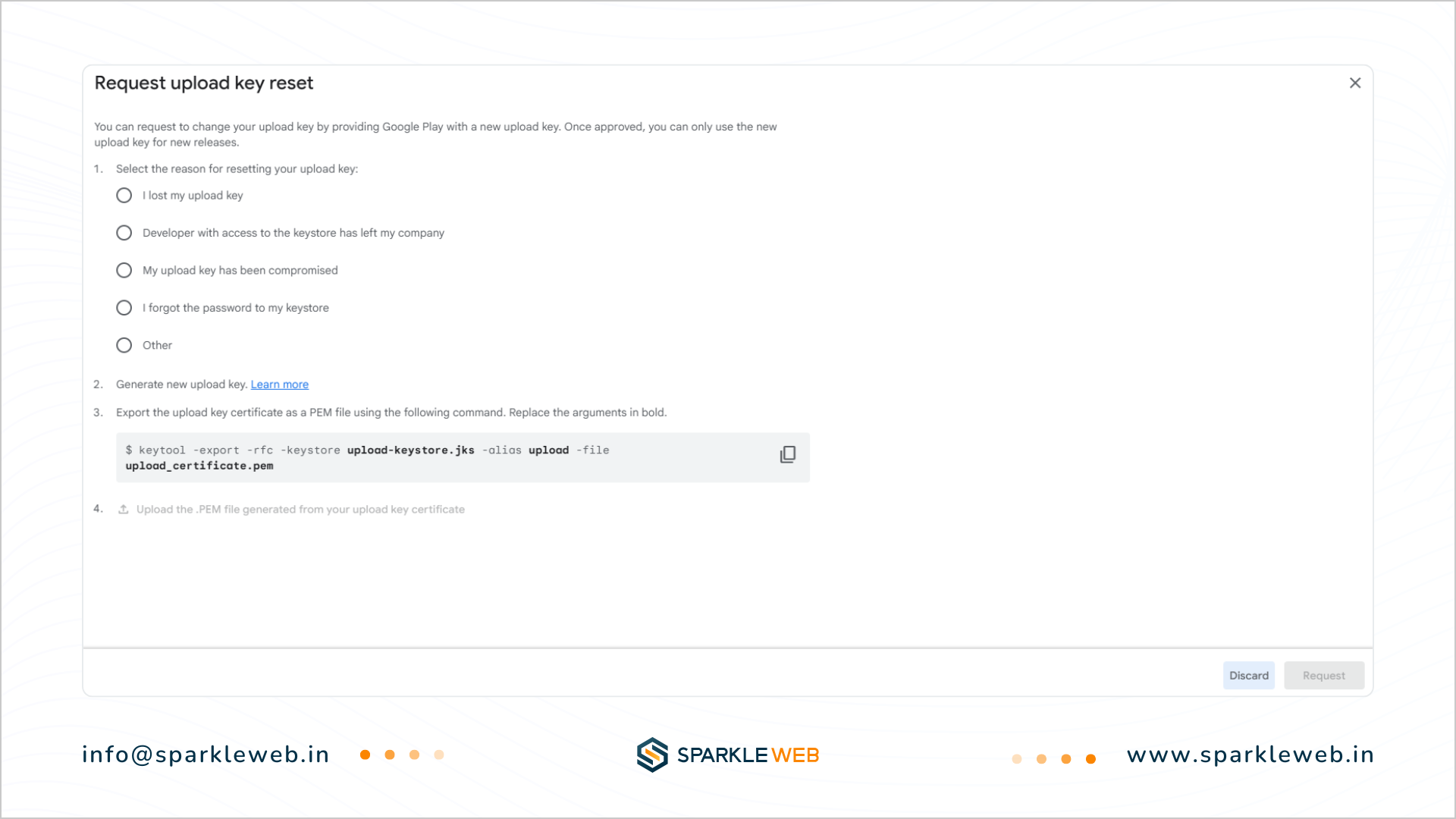
 
Now that you have generated the new key, the next step is to let Google know.
 
 
1. Go to Play Console → Help → Contact Support.
 
2. Choose the option for App Signing / Reset upload key.
 
3. Fill out the request form. Google will ask for:
 
  • Your App’s Package Name (e.g., com.example.myapp).

  • The reason for requesting a new key.

  • The new public key certificate.

To create the public key certificate, run this command:

$ keytool -export -rfc -keystore upload-keystore.jks -alias upload -file upload_certificate.pem

This generates a .pem file that you will send to Google.

 
Google will verify your request, process it, and usually reset your upload key within 48 hours. You’ll get a confirmation email once it’s done.
 
After this, you can sign your new builds with the new key and upload them to Play Console as normal.


Best Practices for Managing Keys

 
Losing or forgetting your key credentials is stressful. Here are some simple practices to avoid it in the future:
 

1. Backup your keystore file

 
Keep at least two copies of your keystore in secure places (e.g., encrypted drive, cloud storage with restricted access).
 

2. Use Password Managers

 
Store your keyAlias and keyPassword in a trusted password manager. Never rely on memory alone.
 

3. Limit Access

 
Only give keystore access to trusted team members. Use version control systems (like Git) for code, but never commit your keystore file into the repository.
 

4. Prefer Google Play App Signing

 
If you enable Google Play App Signing, you only manage the upload key. Google keeps the actual signing key safe, so even if you lose your local key, you can reset it without losing your app’s update history.
 

5. Document the Process

 
Create internal documentation for your team that explains where the keystore is stored, how to use it, and how to request a reset if needed.


Conclusion

 
Requesting a new keyAlias and keyPassword from Google is not as scary as it sounds. The process is simple if you follow the steps:
 
  • Enable and use Google Play App Signing.

  • Generate a new key locally using keytool.

  • Submit a reset request through Google Play Console support with the new certificate.
Within a couple of days, you will be able to upload your app updates again without issues.
 

At Sparkle Web, we don’t just build mobile apps — we also help startups and businesses manage their publishing and security processes. From generating keys to handling Play Store submissions, we make sure your app updates are smooth, secure, and stress-free. Facing issues with the keystore or app signing? Let’s connect and keep your mobile app journey safe and seamless.

    Author

    • Owner

      Dipak Pakhale

      A skilled .Net Full Stack Developer with 8+ years of experience. Proficient in Asp.Net, MVC, .Net Core, Blazor, C#, SQL, Angular, Reactjs, and NodeJs. Dedicated to simplifying complex projects with expertise and innovation.

    Contact Us

    Free Consultation - Discover IT Solutions For Your Business

    Unlock the full potential of your business with our free consultation. Our expert team will assess your IT needs, recommend tailored solutions, and chart a path to success. Book your consultation now and take the first step towards empowering your business with cutting-edge technology.

    • Confirmation of appointment details
    • Research and preparation by the IT services company
    • Needs assessment for tailored solutions
    • Presentation of proposed solutions
    • Project execution and ongoing support
    • Follow-up to evaluate effectiveness and satisfaction

    • Email: info@sparkleweb.in
    • Phone Number:+91 90331 80795
    • Address: 409 Capital Square, Near Parvat Patiya, Godadara Naher Rd, Surat, Gujarat 395010